

 Contact


 Popup Pad - Getting Started
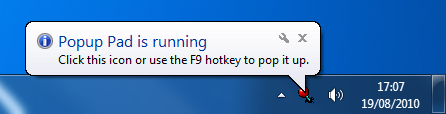
When you first start the program it will appear briefly in the right-hand corner of the screen, before popping down into the system tray:
If using Windows 7 or 8 you may have to click on the "Show hidden icons" to see it:
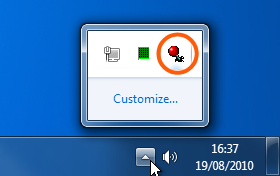
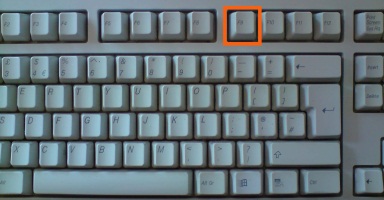
To pop the pad up, you can either single left-click on the pin icon or use the hotkey. By default the hotkey is set to the F9 function key. You can change the hotkey to something else in the settings (How do I change the default hotkey?)
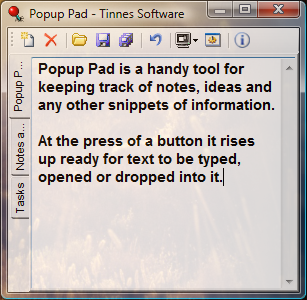
With the program up, the open pads are displayed as tabs down the left-hand side. The label of a tab previews the text inside it. Clicking on a tab selects it.
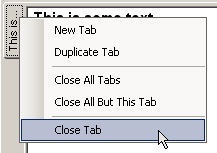
If you right-click on a tab, you will be presented with some management options. You can create a new tab, duplicate the current tab or close tabs:
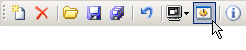
The main operations of the program can be accessed using the toolbar at the top. You can open files, save the pad(s) or change the program's settings:
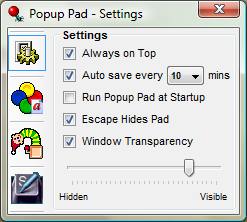
The settings window is where the behaviour and look of the program can be changed. Click on the icons on the left to move between the different sections: General, Appearance, Animation and Hotkey. Any changes made will be applied and saved instantly, so you can just close the window when you're done.
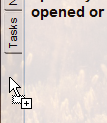
You can drag-and-drop text files in from your computer or selected text from other applications such as Mozilla Firefox. Dragging to the tab area will create a new pad to put the text into, or you can drag to a point in the current tab to insert directly into the text.
This was a short introduction on how to get started using Popup Pad. For more information you may also be interested in the Frequently Asked Questions.